2014年11月24日星期一

How to restore lost photos from samsung galaxy s5


All popular Galaxy series phones and tablets are supported by the Galaxy phone manager, including Galaxy S5 (mini, active, neo), Galaxy S4 (mini, active, zoom) Galaxy S3 (mini), Galaxy S2, Galaxy S, Galaxy Note series (Note, Note 2, Note 3, Note 4), Galaxy Tab, Galaxy Ace, Galaxy Young, Galaxy camera, Galaxy Core, Galaxy Exhibit, Galaxy Fit, Galaxy Mini, Galaxy Win, etc. Free to try the demo to manage your Galaxy phone data.

All your deleted data just like photos, video, music are still on your samsung mobile phone or from SD card or Android mobile(such as HTC, Samsung, Sony, Motorola, LG, etc.).You can recover those deleted contacts, messages, photos, video, music with Coolmuster Samsung Recovery software. You can get them back only One click to scan all lost photos & videos from SD card or Android mobile.

Step 1: Shut down other Android phone management software in computer, and launch Coolmuster Samsung Recovery.
Step 2: Connect your Android phone to computer with USB cable, and then the program will detect your phone.

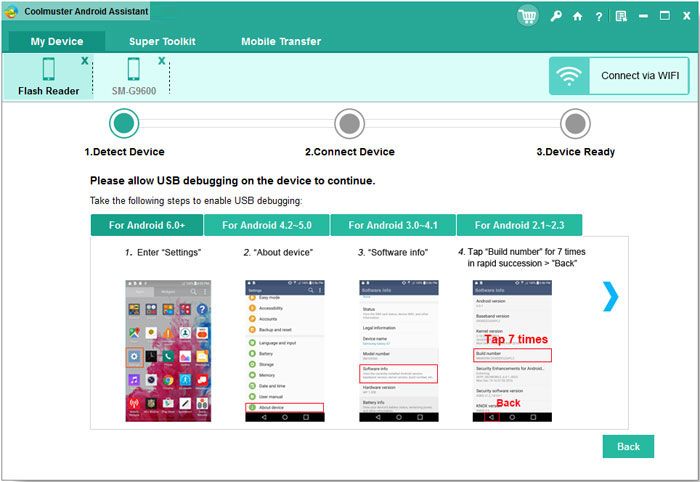
Enable USB Debugging in your phone, different versions of Android so have different operation:
For Android 2.3 or earlier: Enter "Settings" < Click "Applications" < Click "Development" < Check "USB debugging"
For Android 3.0 to 4.1: Enter "Settings" < Click "Developer options" < Click’s debugging"
For Android 4.2 or newer: Enter "Settings" < Click "About Phone" < Tap "Build number" for several times until getting a note "You are under developer mode" < Back to "Settings" < Click "Developer options" < click "USB debugging"
3 Scan your Samsung galaxy for deleted photos/pictures

2014年11月17日星期一

Coolmuster -regain android cell phone photos


Accidentally delete, reset factory data, erase or format SD card and more? As Android user increases rapidly today, the questions about how to recover deleted or lost Android datas also become popular. However, the solution to completely recover the deleted or lost Android SMS, photos, contact, media and so on is by using Coolmuster Samsung Recovery Tool.
Coolmuster Samsung Recovery is capable of recovering text messages, Contacts, photos, videos, music etc from an Android phone or tablet such as HTC, Samsung Mobile, Motorola, LG, Sony, Huawei etc. Due to the ease-to-use interface, it's ideal for everyone, like single users or professionals, even concerned parents who want to protect their kids from negative information. Scan, preview and recover. Simple clicks bring you what you want.

Step 1: Firstly install the Coolmuster Samsung Recovery software on the computer and run the software for recovering your deleted contacts.
Step 2: Then connect your Android device to the computer and enable the USB debugging. For this go to “settings”>Click on the “About Phone”>Tap on “Built number” for few time until a note is generated “You are under developer mode” > then back to the settings > the click on the “Developer Options”> then Check on the “USB debugging”.

Step 3: After this scan you’re Android for lost photos will be generated that your Android has been detected by the program successfully. Here you have to just click on the “Start” button to analyze your Android device and wait for few seconds.
Step 4: After all the photos have been scanned the program will remind you to stop and scan. After this you can preview all the contacts one by one in the scan results that is marked as “Recover”, click on them to recover all of them on your computer.

2014年11月6日星期四

How to recover iphone data from itunes backup


Coolmuster iPhone data recovery software support Windows based operation system with all iphone 6/iphone 6 plus, iphone 5/5s, iphone 4/4s. Coolmuster iOS data Recovery software restore all songs, photos, pictures, images, music & videos files from corrupted, formatted, deleted or inaccessible iphone drives.
Coolmuster iPhone recovery software embedded with a graphical user interface, that features gives the user to access the software very easily.
Here, introduce one way to recover lost data from iTunes
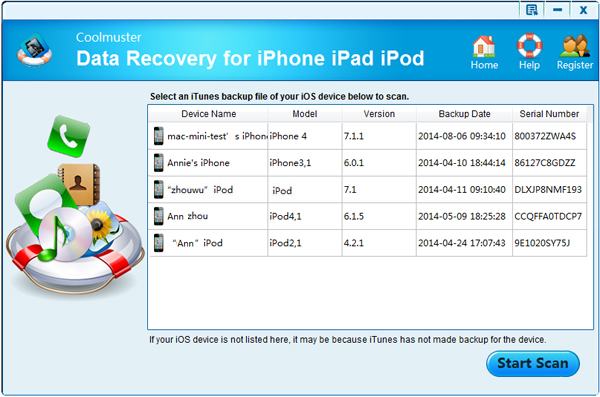
Step 1. Select iTunes backup file to scan

When launching the program, you’ll be lead to the "Recover from iOS Device" mode (the default mode). Switch to “Recover from iTunes Backup File”.
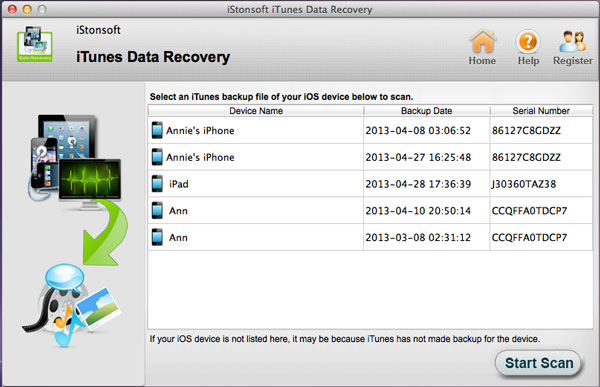
Here, all your iTunes backup files of your iPhone, iPad or iPod touch which has ever synced with iTunes on this computer will be automatically found and listed. Select the one of yours and click "Start Scan" to begin iTunes backup extracting.
Step 2. Preview and recover previous data
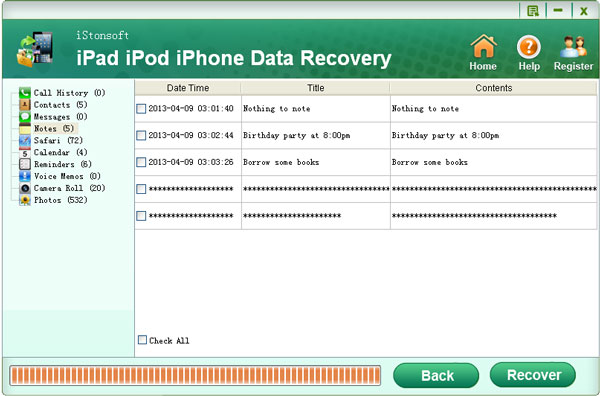
After the scan, all your data backed up by iTunes can be found and displayed in categories. You can preview them one by one before recovery.
Then you can selectively mark and recover those you want by pressing "Recover" button at the bottom. Note: Don't sync your device with iTunes when you realize that you've lost data, or the iTunes backup file will be updated after the sync, if you want to recover them through this recovery mode.

2014年10月28日星期二

Coolmuster -copy android data to iphone 6 /iphone 6 plus


Many types of phone data can be shared between iPhone and Android. Such as music, photos, contacts and so on. This is an easy way to transfer iPhone contacts to Android directly. There are also many ways to transfer contacts such as transferring via iTunes, via iCloud, via app. I introduce a software- Coolmuster Lab.Fone for Android to transfer data between two phones here:
1.To transfer data from android to iPhone 6/iphone 6 plus:
- Connect your old Phone to iTunes on your PC/Mac and sync - In the Info menu, ensure your contacts are set to sync

- In the iTunes device list: Right click on your iPhone and select 'Backup' from the context menu allow the backup to complete.
- Connect your new iPhone to iTunes (on the same computer you used to back up your current iPhone)
- iTunes will ask you if you want to 'Restore from a backup' or set up your new iPhone as a new phone.
- Select 'Restore from a backup'- Choose the most recent backup of your current iPhone (if prompted)
- Sync your new iPhone to receive the backup information and your contacts. 

2014年10月20日星期一

Coolmuster-transfer samsung data to iphone 6/iphone 6 plus


As their intelligence platform's top machine emperor,The samsung Galaxy S4 withThe iPhone 6/iphone 6 plus Natural via is stylist elaborate design, with good quality and handle.And for which problem of product shape design is better, in fact because every man everyone look at the product's point of view is different, just as a famous saying said "one thousand people think there are one thousand Hamlet", no matter how the appearance design of any product, there will always be part of to love, just group is divided into "public" or "niche", so the appearance of a product design to be the most difficult to affirm.
Many people buy the new iPhone 6 iphone 6 plus, iPhone 5S, iPhone 5,ect, they use Samsung mobile phone before.When you buy a new iPhone 6,you may need to transfer messages from old Samsung to new iPhone directly. But different phone Platform, how to do that job?
Here, we introduce the easiest & fastest way to transfer samsung text messages to iPhone 6/Plus. With the help of Coolmuster Android Assistant or Coolmuster iPad iPhone iPod to PC Transfer which can transfer contacts, text messages, photos, videos, music etc between samsung, Android and iOS.


How to transfer Text Messages from Android Samsung to iPhone
Step 1. Launch the phone to phone transfer
Download and install the mobile phone transfer program on your computer. After running, the main window will show up, select "Phone to Phone Transfer", click "Start".
Step 2. Connect your Android and iPhone to the computer
Connect both of your Android and iPhone to the computer through USB cables and then Mobile Transfer will detect these two devices. While two devices are detect by program you can see the window show up as follow:
to begin the transfer, choose "Text messages" in the content box and click "Start Copy" button. If you want to clear all the destination phone data before copy, you can click the ''Clear data before copy''. As long as you have finish data transfer, please click "Complete".
 

2014年10月11日星期六

How to print sms from samsung


Android Phone is one of the mainstream portable devices on the market especially Samsung Mobile Phones. In order to manage our data in Samsung phones in more effective way, we need professional yet reliable Android Manager Software to help us.

For example, in many cases, we need print out text messages from our Samsung phones. Then read this article to learn how to print off text conversation from Samsung Galaxy/Notes easily.


Enable USB Debugging in your phone, different versions of Android so have different operation:
For Android 2.3 or earlier: Enter "Settings" < Click "Applications" < Click "Development" < Check "USB debugging"
For Android 3.0 to 4.1: Enter "Settings" < Click "Developer options" < Click’s debugging"
For Android 4.2 or newer: Enter "Settings" < Click "About Phone" < Tap "Build number" for several times until getting a note "You are under developer mode" < Back to "Settings" < Click "Developer options" < click "USB debugging"
Step 2. Preview and Export SMS Messages to PC
Step 3. Print out Android Text Messages

2014年10月8日星期三

Recover iPhone SMS after updating iOS 8

Actually, there's a way to restore deleted SMS directly from iPhone 6/5S/5/4S/4/3GS.
If you've ever synced your iPhone with iTunes before, there is also another way: to recover from iTunes backup for all iPhones including iPhone 5S and iphone4S. You just need the help from an iStonsoft iPhone Data Recovery tool.

Part 1: Directly recover deleted photos from iPhone 6/5S/5/4S/4/3GS
1:Connect your iPhone to the computer
At first, please connect your iPhone to the computer and run the program after installing it.

2:Enter your iPhone's system and scan it (iPhone 5/4S users can skip this step)
After downloading the plug-in, you need to get into the device's scanning mode before scanning. You can follow the steps below:
1)Hold your iPhone and click the "Start" button.
2)Pressing the "Power" and "Home" buttons simultaneously for 10 seconds.
3)After 10 seconds, release the "Power" button, but keep holding "Home" for another 15 seconds.

3: Preview and recover iPhone messages
When the scan is completed, choose "Messages" to preview the detailed content. Mark those you want and click "Recover" to save them on your compute with one click.
Look more information:
How to regain deleted iphone sms
How to export sms from iphone backup